Screen Studio
Screen Studio is a screen recording and editing tool built specifically for macOS, suitable for producing product demos, course tutorials, and social media videos. It can record the entire screen, a single window, or a specified area, paired with a camera, microphone, and system audio; after recording operations, the software automatically adds zooms based on click locations and smoothens cursor movement, reducing the work of setting up dynamic motion step by step.
Product screenshots
About Screen Studio
Screen Studio is a screen recording and editing tool built specifically for macOS, suitable for producing product demos, course tutorials, and social media videos. It can record the entire screen, a single window, or a specified area, paired with a camera, microphone, and system audio; after recording operations, the software automatically adds zooms based on click locations and smoothens cursor movement, reducing the work of setting up dynamic motion step by step.
When editing, you can directly delete sentences in the transcript to trim the video, adjust camera layouts, captions, and visual presets, and then convert them into horizontal, square, or vertical versions. Recording, voice enhancement, and multiple recognition functions are processed locally on the Mac; corresponding data is only transmitted when creating sharing links, sharing projects, or opting into cloud features, making it convenient to choose a working method based on collaboration needs.
Features
- Multi-Source Recording: Record the entire screen, a single window, or a specified area, alongside a camera, microphone, and Mac system audio.
- Recording Assistance and Crash Recovery: Provides window size adjustment, hiding desktop icons, speaker notes, countdowns, pause/resume recording, and keyboard shortcuts, with backups saved every two seconds during recording to support recovery.
- Automatic and Manual Zooming: Automatically arrange zooms based on click operations, or specify positions on the timeline to choose regular or magnifier-style zooms, while adjusting composition to avoid the camera blocking the cursor.
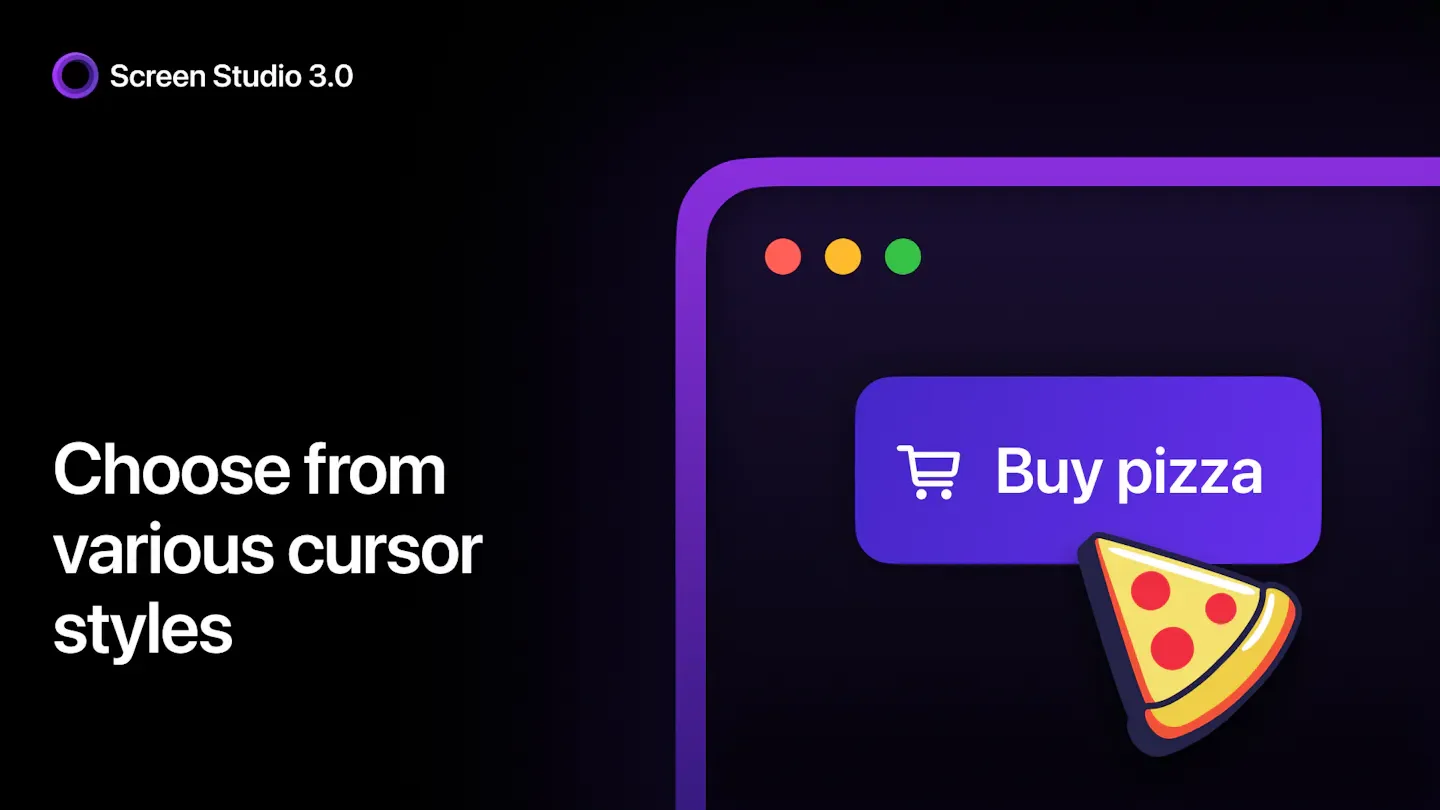
- Cursor and Dynamic Effects: Smooth mouse trajectories, adjust cursor size and style after recording, add click effects, motion blur, idle hiding, and looping cursor returns.
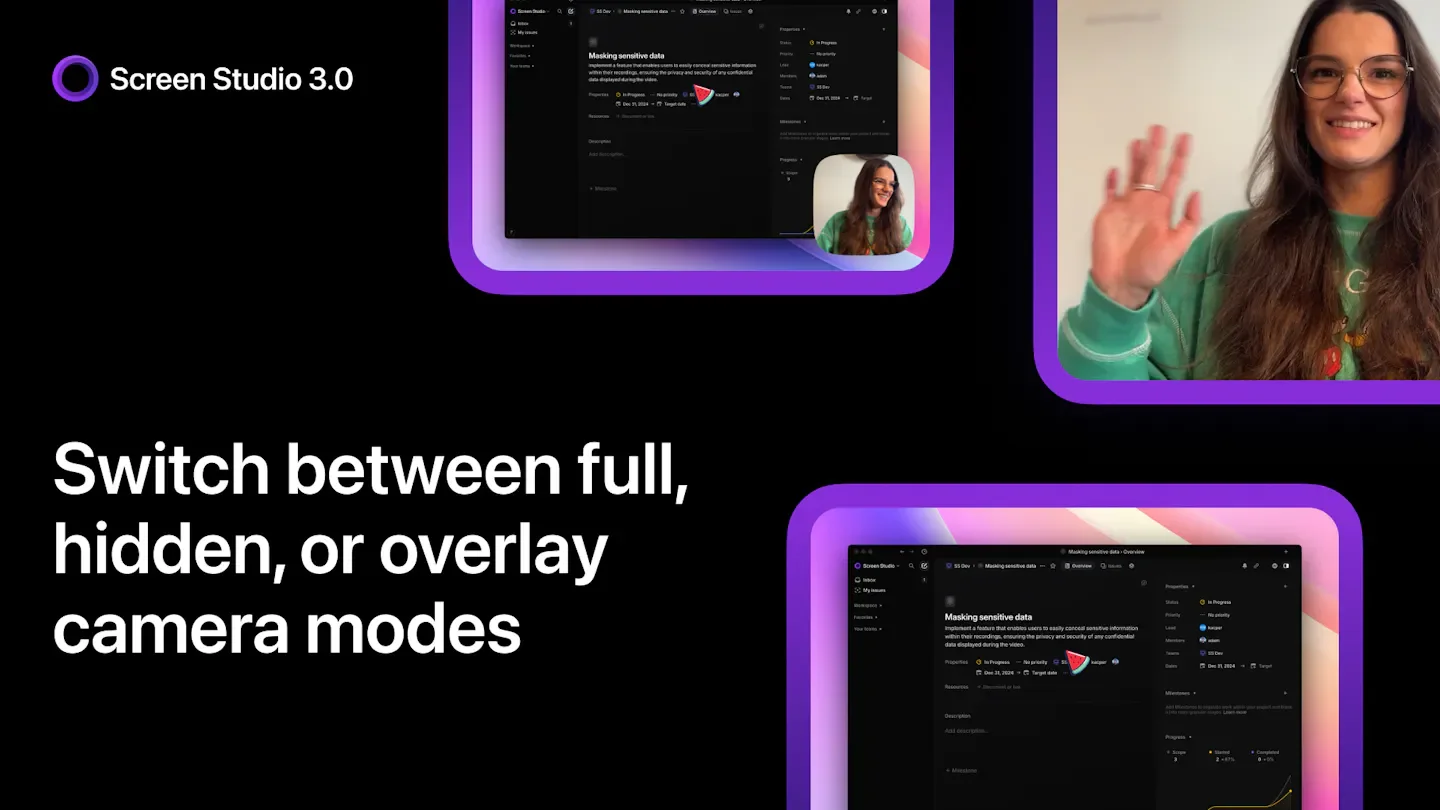
- Camera Layouts and Portrait Processing: Switch between full-screen portrait, split screen, corner overlay, plain screen, and portrait background removal layouts, with face tracking and hiding portraits when muted.
- Transcript and Timeline Editing: Trim videos by deleting transcript sentences, shorten filler words and pauses, and trim, cut, speed up, or import other videos for editing.
- Local Voice Enhancement: Reduce fan, keyboard, and environmental noise on the Mac, alongside a Podcast voice processing mode labeled as beta.
- Captions and Transcription: Generate transcripts and captions locally via Whisper or Apple speech recognition, providing text and animation styles, with optional cloud transcription available.
- AI Voiceover: Sends input text to the cloud to generate speech, with a data transmission prompt displayed before use.
- Multi-aspect Ratio Conversion: Automatically adjusts scaling, camera framing, and subtitle position when switching between horizontal, square, and vertical ratios, with preview coverage for Instagram and TikTok interfaces.
- Canvas Style Presets: Adjusts background, padding, and shadows, allowing you to save the overall style and share it with your team.
- iPhone and iPad Recording: Records screens by connecting devices via USB, applies matching device frames, and uses the same editor for trimming and exporting.
- Masking and Highlights: Covers sensitive data such as keys and emails after recording, or dims other areas to emphasize specific content.
- File Export and Clipboard: Exports up to 4K MP4 at 60fps, or up to 1080p GIF, and allows finished videos to be copied and pasted into other applications.
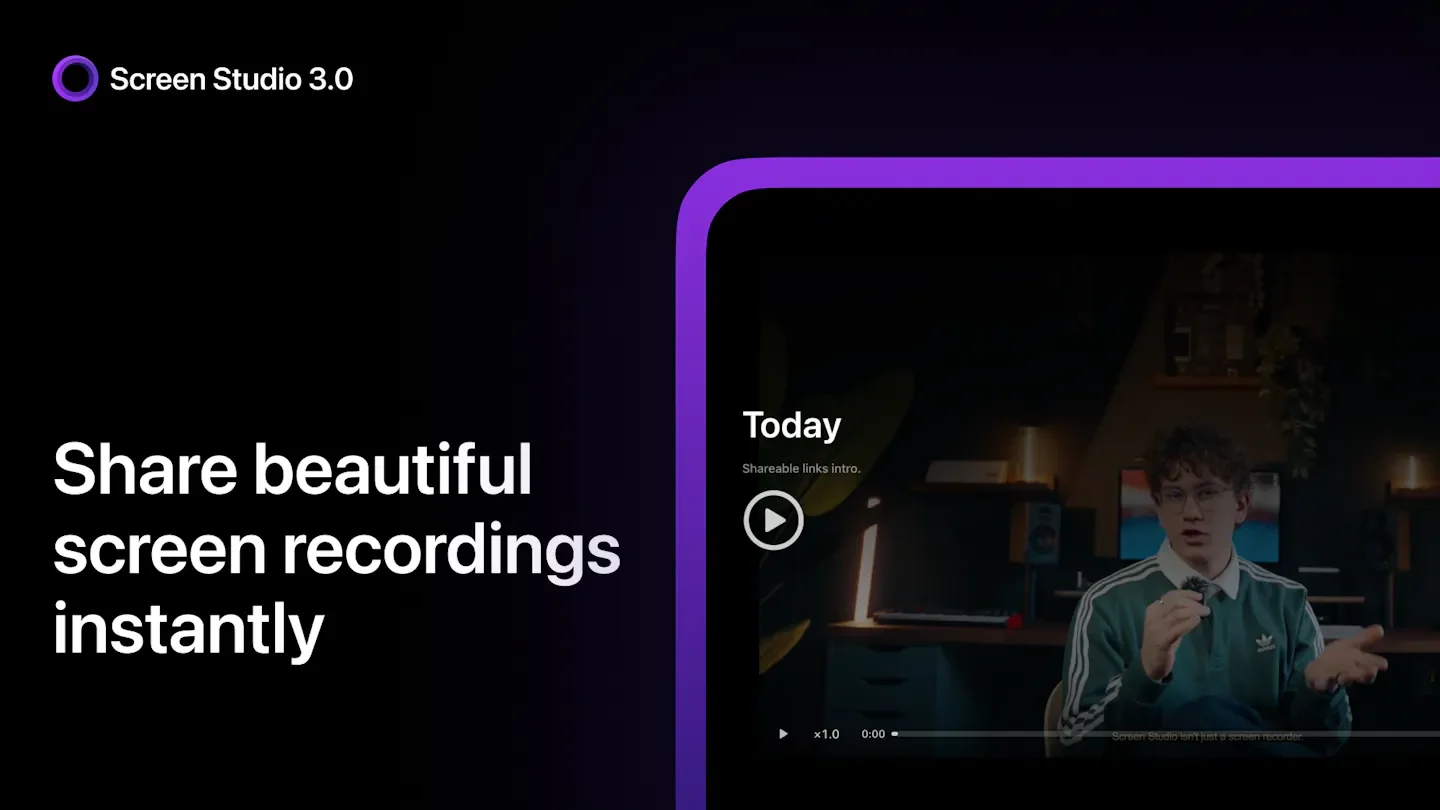
- Video Link Sharing: Creates browser-viewable share links supporting up to 1080p, 60fps, and 30-minute videos, complete with viewing permissions and timestamped comments.
- Editable Project Sharing: Hands off projects containing scaling, editing, and layouts for others to continue editing, with single project downloads supporting up to 20 GB.
Use cases
- When creating software product demos, record window operations and use auto-zoom, smooth cursor, and sensitive data masking to clearly showcase features.
- When recording tutorials, combine camera and screen layouts, then use transcript editing, noise reduction, and subtitles to organize and explain the content.
- When using the same operational video for websites and social media, convert between horizontal, square, and vertical ratios while previewing whether social interfaces obscure key points.
- When collaborating on video production with a team, share editable projects for continued editing or collect timestamped comments via video links.
Categories: Tool Resources, Tutorial Recording, Exquisite Screen Recording
Pricing
Paid: Annual plan is equivalent to $9 per month; monthly plan is $25 per month. The source only indicates $ without specifying the currency.